How to Manage Comments on Instagram and Facebook Partnership Ads
Partnership ad comments land on the creator's post, not your Page. See what brands can hide, delete, or reply to, and how to moderate every creator ad in one place.
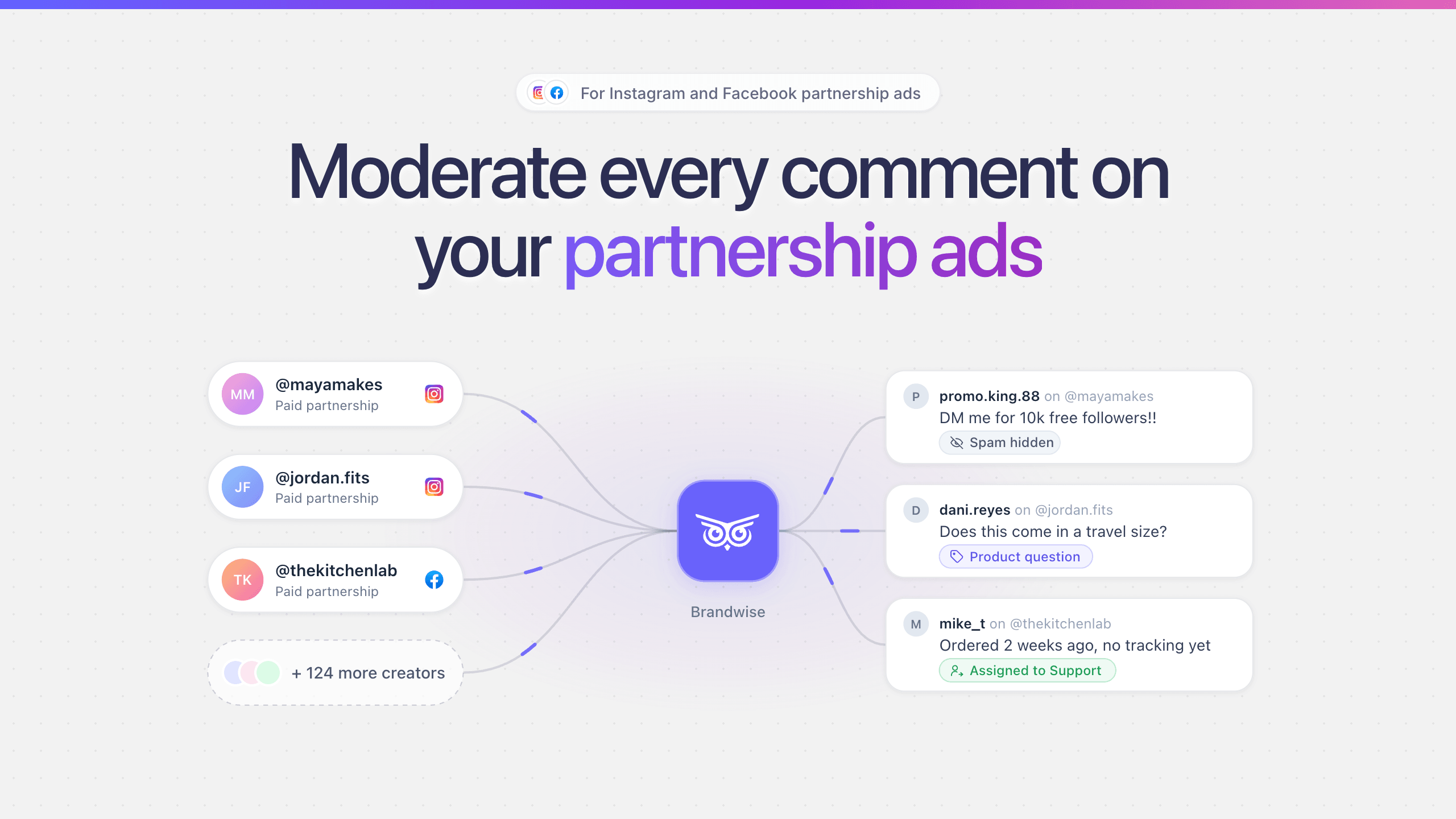
When a Meta partnership ad runs from a creator's handle, its comments belong to the creator's post, not to your brand's Page or Instagram account. That is why they never show up in your inbox. As the advertiser, you can open each ad in Meta Ads Manager and hide comments, but you can't delete them, you can't reply on Instagram, and the creator can unhide anything you hide.
That works for a handful of ads. Once you run partnership ads with dozens of creators, a reliable way to manage the comments is to have each creator connect their account once to a moderation tool, so comments from every creator's ads land in one place and follow one set of rules. Everything below applies the same way if your team calls them whitelisted or allowlisted ads.
Why partnership ad comments don't reach your inbox
A partnership ad runs with a creator's or partner's account in the header, and Instagram says partnership ads use signals from both accounts. Because the ad is built on the creator's identity, its comments attach to the creator's post. Your Page inbox and the comment tools you use for ads that run from your own account don't see them.
Your keyword filters may not follow them either. Meta's ad comment guide says the Facebook profanity filter and Instagram Hidden Words are set at the Page or profile level and extend to ads from that Page or profile. On a partnership ad the identity in the header is the creator's, so don't assume your own Hidden Words list is catching spam there.
Can brands hide, delete, or reply to partnership ad comments?
Brands can hide them but can't delete them, and Ads Manager only offers Reply on Facebook. Meta's partnership ad permissions page lists the same comment rules for content-level and account-level permissions:
| Action | Brand (advertiser) | Creator (partner) |
|---|---|---|
| See comments | Yes, one ad at a time in Ads Manager | Yes, on their own post |
| Hide a comment | Yes, on the ad and on the creator's original post | Yes, and they can unhide anything the brand hid |
| Delete a comment | No | Yes, on the ad or their original post |
| Reply | Ads Manager offers Reply for Facebook comments only | Yes, as themselves |
| Keyword filters and Hidden Words | Cover the brand's own Page and profile | Cover the creator's own Page and profile |
In practice, hiding is the only moderation action a brand gets, it isn't final, and buyer questions on Instagram partnership ads can't be answered by the brand in the thread.
How to moderate partnership ad comments in Meta Ads Manager
Meta's steps for managing comments on an ad you created in Ads Manager:
- Open Ads Manager and go to the Ads tab.
- Find the partnership ad and click Edit below its name.
- In the left column, select ... next to the ad name, then More options.
- Choose Manage Instagram comments or Manage Facebook comments, depending on where the ad runs.
- In the window that opens, select ... next to a comment and choose Hide comment or Report comment. On Facebook, you can also like and reply.
Meta notes that to manage Instagram comments, you may need your Instagram profile added to your business portfolio and connected to your Facebook Page. Menu labels change over time, so check Meta's current guide if anything looks different.
Then repeat it for the next ad. Ads Manager handles comments one ad at a time.
What about TikTok Spark Ads?
Spark Ads are TikTok's version of ads that run from a creator's account or post. According to TikTok's comment management guide, advertisers can hide or unhide comments, block users, and hide comments in bulk in TikTok Ads Manager. Replies are more restricted: on Spark Ads that use an authorized account or post, only someone with access to that account or post can reply. The rest of this guide focuses on Meta.
Where the native workflow breaks
The native route is fine for a test with two or three creators. Creator platforms such as Trybe, Billo, Insense, and Aspire make it easy to launch partnership ads with many creators at once, and that is where it strains:
- It is one ad at a time. Thirty creators each running a few variations means dozens or hundreds of comment threads to open and check, every day.
- Hidden isn't final. A creator can unhide a comment you hid, so a hide from last week may not still be in place.
- Questions go unanswered. You can't reply on Instagram from Ads Manager, so a buyer asking about sizing or shipping on a high-performing creator ad gets silence unless the creator answers.
- Nothing is shared across creators. There is no assignment, labeling, or history across ads, so the same objection appearing under every creator's ad stays invisible.
- Your best ads need it most. The ads you scale hardest get the most reach, which also means the most spam and the most buyer questions.
How to run comment moderation across every creator
The fix is less about a better Ads Manager routine and more about ownership. Set it up once, before the ads go live.
1. Put comment handling in the creator agreement
Decide who moderates comments on the ads you pay for. Creators are more likely to agree when it is clear that their personal posts, comments, and messages stay private. A clause you can adapt:
For the duration of the partnership, Creator will connect their Instagram and/or Facebook account to Brand's comment moderation tool so Brand can moderate comments on partnership ads that Brand runs from Creator's account. Brand will only act on comments on those partnership ads, will not access Creator's other posts or direct messages, and Creator may disconnect at any time after the partnership ends.
This is a starting point, not legal advice. Adapt it with your own counsel and to the tool you use.
2. Make connecting part of creator onboarding
Moderation tools built for partnership ads typically ask the creator to connect their Instagram or Facebook account through a link. Put that link in onboarding, right next to the partnership ad permission request, so it is one step for the creator instead of a follow-up you have to chase after the ads are live.
3. Write one rule set for all creators
Rules should depend on what the comment is, not which creator's ad it appeared under:
| Comment | Default action |
|---|---|
| Spam, scams, impersonation, or phishing links | Hide automatically |
| Hate speech or harassment | Hide automatically, then review |
| Product, sizing, or availability question | Answer, or route to the team |
| Order, shipping, or refund problem | Assign to support |
| Legitimate criticism of the product | Leave visible and respond |
| Fans talking to the creator | Leave alone |
Hiding fair criticism by default tends to backfire. It hides useful feedback and can frustrate a customer who already has a problem.
4. Give creators an answer sheet for Instagram
On Facebook partnership ads, reply as your brand. On Instagram, Ads Manager offers Hide and Report but not Reply, so the creator is usually the one who can answer in the thread. Give each creator a short answer sheet for the questions you expect: sizing, shipping times, where to buy, and whether the discount code is still active. It takes ten minutes to write and keeps buyers from going unanswered.
5. Review patterns weekly
Label questions and complaints by type so you can count them across creators. If ten people ask the same question under one creator's ad, the ad or landing page is missing information. Fixing the creative usually beats answering the same question a hundred times.
How Brandwise manages partnership ad comments
Brandwise is built for this workflow on Instagram and Facebook. You send each creator an invite link, and they connect in about a minute, with no Brandwise account, and only have to do it once. If you're already an admin on a creator's Page, you can connect it yourself.
From then on:
- Brandwise loads comments on your partnership ads only. The creator's own posts, comments, and DMs stay private.
- Because the creator's account is connected, you can delete spam and scams for good, not only hide them the way Ads Manager allows.
- One rule set covers every creator, including the ones you add next month: hide spam, send complaints to the right teammate, and mark the noise as read.
- Creator ad comments sit in the same inbox as the comments on your own organic posts and ads.
- Smart labels flag buying questions across every creator, and on Facebook partnership ads, replies go out from your own brand Page.
Step-by-step setup is in the partnership ads help guide.
Where to start
If you run partnership ads with fewer than five creators, the Ads Manager routine above is workable: check every ad daily and give each creator an answer sheet.
Beyond that, add comment handling to the creator agreement and connect your two highest-spend creators first. Run one rule set across their ads for a week, see what it catches, then roll it out to the rest of the program. A free Brandwise trial is enough to run that test on your own creators.
Not sure whether your setup counts as a partnership ad or whitelisting? See partnership ads vs. whitelisting.